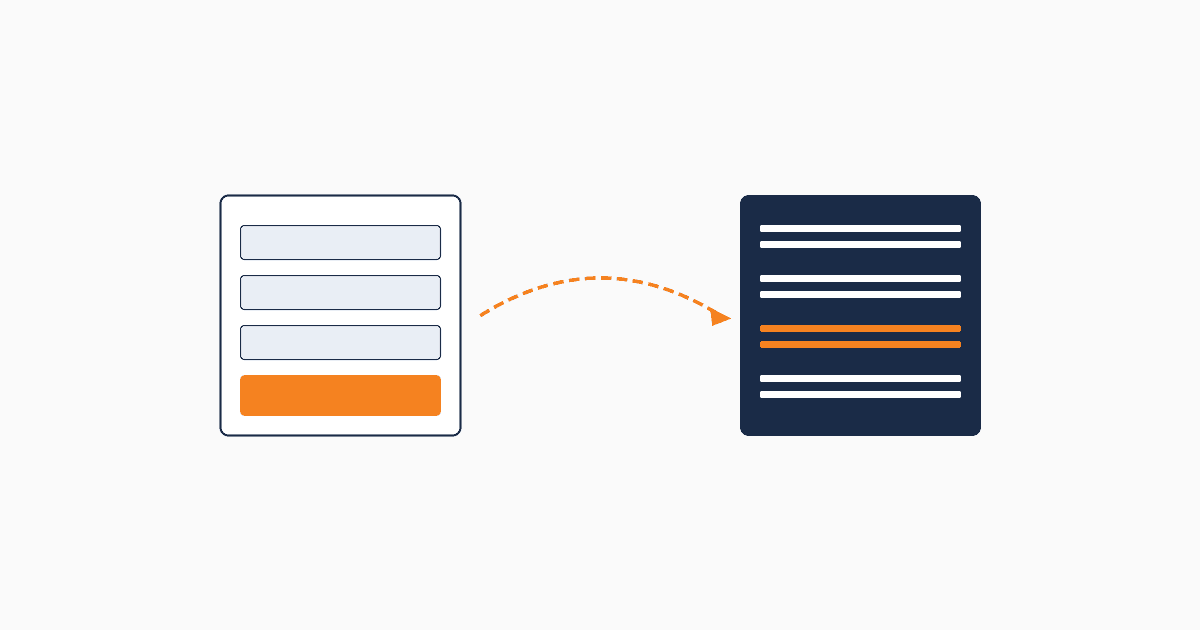
Most articles on connecting forms to CRMs assume you'll use Zapier. Zapier works, but it's not always the right choice — especially when the CRM has a native form builder, or when you need reliability that doesn't depend on a third-party sync service.
This article covers four ways to connect a form to a CRM, with honest trade-offs on each. The goal: pick the right approach for your situation, not the default one.
The 4 ways forms connect to CRMs
Option 1: Native (form builder inside the CRM)
The CRM provides a form builder. You build the form, grab the embed code, paste it into your site. Form submissions go directly to the CRM as leads.
Setup time: 5 minutes.
Reliability: Highest — no third-party sync, no rate limits, no integration to maintain.
Cost: Built into the CRM. No additional fees.
Trade-offs: You're using the CRM's form builder, which may have less styling control than dedicated form tools (Typeform, Tally, Jotform).
When to use: When the CRM's native form builder is good enough for your needs. For most B2B teams collecting standard contact information, it is.
Option 2: Webhook (HTTP POST from form to CRM)
Your form tool sends form submissions as HTTP POST requests to a webhook URL provided by the CRM. The CRM receives the data and creates a lead.
Setup time: 15-30 minutes (configuring the webhook endpoint, mapping fields).
Reliability: High — direct connection between your form and the CRM, no third-party intermediary.
Cost: Usually free (most CRMs include webhook ingestion; most form tools include webhook output on at least their paid plans).
Trade-offs: Requires the form tool to support webhooks (most do, but not all free tiers). Field mapping is manual.
When to use: When you want a form tool with more styling/UX control than the CRM's native form, but don't want to depend on Zapier.
Option 3: Zapier (or Make / n8n)
A third-party automation tool sits between your form and your CRM. When the form submits, Zapier picks up the event and creates a record in the CRM.
Setup time: 10-15 minutes.
Reliability: Lower than native or webhook — depends on Zapier's uptime, sync delays (sometimes minutes), and your Zapier plan's task limits.
Cost: Zapier free tier covers up to 100 tasks/month. Most B2B teams need a paid plan ($30/month for Pro). Make and n8n are cheaper alternatives.
Trade-offs: Adds a dependency. Failures are harder to debug (was it the form? Zapier? the CRM?). Sync delays mean leads sometimes appear in CRM minutes after submission.
When to use: When you need complex multi-step automation that the CRM and form tool can't handle natively. For simple form-to-CRM, Zapier is usually overkill.
Option 4: API (custom integration)
Your development team writes code that sends form submissions to the CRM's API. Maximum flexibility, maximum work.
Setup time: 1-5 days (or longer for complex logic).
Reliability: Highest in theory, dependent on your team's engineering quality in practice.
Cost: Engineering time. Direct API access often included on the CRM's higher tiers.
Trade-offs: Requires a developer. Adds a maintenance commitment.
When to use: When you have custom logic that other approaches can't handle — multi-CRM routing, complex field calculations, custom validation, enterprise security requirements.
When native beats Zapier
Three reasons to prefer native form-to-CRM over a Zapier-based stack:
1. Cost. Native is included in the CRM's cost. Zapier adds $30+/month for a typical team. Across a year, that's $360+ for a problem that doesn't need solving.
2. Reliability. Zapier syncs are not instant. Most are 1-5 minutes. For lead-response-time use cases (where speed matters), 5-minute lag is significant.
3. No third-party data exposure. Lead data passes through Zapier's servers before reaching your CRM. For GDPR-conscious teams, this is an extra processor agreement and extra data-flow audit.
The default assumption (Zapier for everything) made sense five years ago when CRM-native form builders were weak. Most modern CRMs now have form builders capable enough that Zapier-mediated form-to-CRM is unnecessary.
Step-by-step: Native form-to-CRM in 5 minutes
This walkthrough uses QUST as the example, but the pattern transfers to any CRM with a native form builder.
Step 1: Sign in to your CRM (1 minute) Open the dashboard. If you don't have a CRM yet, sign up for one with a native form builder. QUST's free tier (1,000 energy/month) works without payment.
Step 2: Create a form (2 minutes) Find the form-builder section. Choose a template or start blank. Add fields: name, email, company, role, message. Five fields are usually enough.
Step 3: Get the embed code or direct link (30 seconds) The form builder will offer two options: - Embed code (HTML snippet to paste into your website) - Direct link (shareable URL you can use anywhere)
For most cases, the embed code goes into your website. The direct link works for one-off campaigns or social sharing.
Step 4: Paste the embed code into your site (1 minute) On your website, paste the embed code where you want the form to appear. Most CMSes (WordPress, Webflow, Framer) accept HTML embeds directly. For custom sites, your developer handles this.
Step 5: Test end-to-end (30 seconds) Open the page in an incognito tab. Fill out the form. Submit. Verify the lead appears in your CRM within 30 seconds.
If the lead appears, you're done. The form is live, the CRM is receiving data, and you're ready for traffic.
Step-by-step: Webhook-based form-to-CRM
This walkthrough is for cases where you want a third-party form tool (Typeform, Tally, Jotform) connected to the CRM via webhook.
Step 1: Get the webhook URL from your CRM (1 minute) In the CRM, find the webhook ingestion settings. Copy the unique webhook URL.
Step 2: Configure the webhook output in your form tool (5 minutes) In the form tool, find the integrations or webhook settings. Add a new webhook destination using the URL from step 1.
Step 3: Map fields (10 minutes) Map each form field to the corresponding CRM field. This is the longest step because field mapping requires decisions (which form field becomes "email," which becomes "company," etc.).
Step 4: Test with a real submission (2 minutes) Submit a test form. Verify the data appears in the CRM with correct field mapping. If a field is wrong, adjust the mapping.
Step 5: Set up failure handling (5 minutes) Configure what happens if the webhook fails (CRM is down, sync error). Usually: log the submission elsewhere and notify a team member.
Total: 20-30 minutes, depending on field count.
Common pitfalls
1. Email deliverability. Form-confirmation emails should come from your domain, not the CRM's domain. SPF, DKIM, and DMARC records need to authorize the CRM to send on your behalf.
2. Double submits. If a user clicks submit twice, you can get duplicate leads. CRMs handle this differently — some deduplicate by email, others don't. Test this case before launch.
3. Missing source attribution. Source data needs to be captured at form submission, not derived later. Set up UTM parameter capture or hidden source fields before launch.
4. Spam protection. Without a CAPTCHA or honeypot, your form will collect spam leads. Most form builders include basic spam protection — verify it's on.
5. Mobile rendering. Forms that work on desktop sometimes break on mobile. Test on phone before launch.